
 21 September 2026
 Share
Share
1
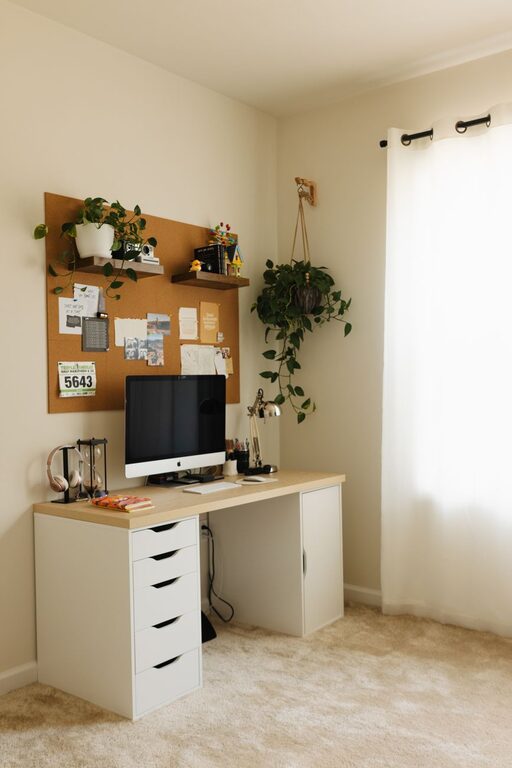

Keeping files organized can save time, reduce stress, and make everyday computer tasks much easier. A clear system helps you find important documents quickly, avoid duplicate files, and protect valuable information from accidental loss.
You do not need a complicated method to get started. The best filing system is one that is simple enough to use consistently. Follow these practical tips to create a cleaner, more manageable computer.
Before creating a new organization system, review what you already have. Open your main folders, desktop, downloads folder, and documents folder. Look for files you no longer need, files that belong somewhere else, and items that are difficult to identify.
Do not try to organize every file perfectly in one session. Begin with the areas you use most often, such as:
– Desktop
– Downloads
– Documents
– Pictures
– Videos
– Work or school folders
– Shared folders
Delete files that are clearly unnecessary, such as outdated installers, duplicate downloads, temporary screenshots, and empty folders. If you are unsure whether a file is safe to remove, move it to a temporary review folder instead of deleting it immediately.
A folder structure gives every file a logical home. Start with a small number of broad categories rather than creating many detailed folders right away.
For example, your main folders might include:
– Personal
– Work
– Projects
– Pictures
– Finances
– Learning
– Archive
Inside those folders, add subfolders only when they are useful. A work folder might contain folders for different clients, departments, or projects. A pictures folder could be divided by year or event.
The goal is to make files easy to locate without forcing yourself to click through too many levels. If a folder contains hundreds of files, divide it into smaller groups. If a folder contains only a few files, it may not need additional subfolders.
A good file name should tell you what the file is without requiring you to open it. Avoid names such as “Document1,” “Final,” or “New Folder.” These names provide little useful information and become confusing over time.
Instead, include details such as:
– Subject
– Project name
– Date
– Version
– Person or organization involved
For example:
– `Smith_Project_Notes`
– `2026_04_15_Travel_Receipt`
– `Website_Update_v2`
– `Family_Reunion_Photos`
Choose one naming style and use it consistently. If you include dates, use the year-month-day format, such as `2026-09-21`. This format keeps files in chronological order when sorted by name.
Be careful with special characters, especially if you move files between different computers or cloud services. Letters, numbers, spaces, hyphens, and underscores are generally easy to manage.
The Downloads folder often becomes a temporary storage area that is never cleaned. It may contain documents, images, software installers, email attachments, and files saved from websites.
Set aside a few minutes each week to review it. For each file, decide whether to:
You can also create a routine that prevents the folder from becoming overwhelming. For example, review downloads every Friday or at the end of each month.
The desktop is convenient for temporary work, but it is not an ideal long-term filing system. Too many desktop icons make it harder to see important items and may slow down your workflow.
Keep only frequently used shortcuts or a small number of active files on the desktop. Move completed projects and older documents to their proper folders. If you need a temporary holding area, create a folder named `To Organize` and review it regularly.
A clean desktop also makes it easier to notice new files and find the items you use most often.
Projects often contain files that are currently being edited, along with older versions and finished materials. Separating these files can prevent confusion.
Consider using folders such as:
– `Active`
– `Completed`
– `Reference`
– `Archive`
When a project is finished, move its files from the active folder to the completed or archive folder. This keeps your current workspace focused while preserving older information for future reference.
Avoid keeping multiple files named “Final,” “Final2,” and “Final New.” Instead, use version numbers or dates, such as `Report_v1`, `Report_v2`, and `Report_2026-09-21`.
Cloud storage can make files available across multiple devices and provide an additional layer of protection. However, it can also create confusion if files are saved in several locations without a clear plan.
Choose one primary location for each type of file. For example, keep work documents in one cloud folder and personal pictures in another. Avoid saving the same file in several unrelated folders unless there is a clear reason.
Review synchronization settings so you understand which folders are stored online and which are also available offline. When sharing files, use descriptive names and remove outdated copies when they are no longer needed.
Organization does not replace backups. A well-labeled file can still be lost because of hardware problems, accidental deletion, or other unexpected issues.
Keep important files in at least two separate locations. These might include:
– Your computer
– An external storage device
– A trusted cloud storage service
– A backup drive used on a regular schedule
Automate backups when possible. Automatic backups reduce the chance that you will forget to save a recent copy. Check your backup settings occasionally and confirm that important folders are included.
It is also wise to test whether you can open or restore files from a backup. A backup is most useful when you know it works before you need it.
File organization is an ongoing habit, not a one-time project. Set a regular schedule for maintenance. A monthly review may be enough for many people, while anyone handling many files may prefer a weekly check.
During each review:
– Empty or organize the Downloads folder.
– Remove obvious duplicates.
– Move completed files to an archive.
– Rename unclear files.
– Review large files that are taking up space.
– Confirm that important folders are backed up.
– Clean up unused folders and shortcuts.
Keep your system flexible. If you repeatedly search for the same type of file, consider whether a new folder or naming rule would make it easier to find. Your organization method should adapt to the way you actually work.
The easiest way to stay organized is to handle files when you create or download them. Take a moment to rename a file and place it in the correct folder instead of postponing the task.
You can also use a simple rule: every file should have a clear name, a specific location, and a reason to remain on your computer. This rule helps prevent clutter from building up.
A practical file system does not need to be perfect. It only needs to be clear, consistent, and easy to maintain. By using simple folders, descriptive names, regular reviews, and reliable backups, you can spend less time searching and more time getting work done.
